
Why is My DNS Slow? How to Test and Fix DNS Lookup Speed
Last Updated: Aug 12, 2026
When you launch an online game, open a website or use an app, your device requires a DNS lookup. Before it connects to a destination, it is important to check the lookup.
DNS translates human readable domains. For example, if the website name is example(.)com, the Domain Name System translates it into an IP address. This IP address is important for computers to communicate.
DNS lookups take place in the background. However, if it becomes slow, this may cause unnecessary delay in connection building. So you need to have a fast lookup speed.
If websites seem slow to start loading and applications occasionally take a long time to connect before establishing a connection. Your D.N.S. performance may be worth checking.
The good news is that lookup speed is easier to test. Hence, changing to a faster resolver may improve the responsiveness of your connection.
What is DNS Lookup Speed?
DNS lookup speed refers to how quickly the resolver can respond to a request for a domain's IP address.
For example, when you enter a website address into your browser. Your device may need to ask a DNS resolver.
What IP Address Belongs to this Domain?
The resolver searches for the required information. Then it returns the result to your device. Your browser can start connecting to the website's server afterwards. It takes a few milliseconds (ms) to complete the process.
A lower DNS response time usually means the lookup is finished. But speed is just one part of overall internet performance. The site’s server, connection quality, network routing, congestion and other factors affect the final loading time.
Still, D. Name system is an important first step in establishing internet connections.
Why Does My DNS Feel Slow?
There are various reasons why D.N.S. lookups take longer.
Your Server is Far Away
The physical and network distance between you and a resolver can affect response time.
A domain name system provider can operate servers around the world. But for your particular network, the resolver is not necessarily the geographically closest or fastest option.
This is one reason why a server (which performs extremely well) for someone in one country may be slow for someone in another country.
Your ISP's DNS Server May Be Slow
Most internet connections receive server settings from the internet service provider automatically. It is convenient to use the default resolver for your ISP. However, it doesn’t guarantee the lowest D.N.S. response time.
Also, performance is not consistent. It depends on the location, provider, network conditions and the infrastructure of the resolver.
If the domain name system server of your ISP is slower than other resolvers, then you can change it. Changing your D. name system settings can improve lookup performance.
Network Congestion
DNS requests still have to travel through a network. Temporary congestion, routing problems, packet loss, or an unstable connection can increase D.N.S response times.
Suppose you see that your Domain Names System tests are extremely fast or much slower. It means the issue is related to inconsistent network conditions.
D.N.S. Server Load
Domain NS providers handle enormous numbers of requests.
A properly designed D.N.S infrastructure uses distributed servers and load balancing. It helps to handle demand. But performance can still vary. It depends on the resolver and your location.
Your Router or Local Network
The source of delay is not always the Domain NS resolver. There are some other factors that contribute. These include the router, Wi Fi connection, other networking equipment or local network configuration. Because of this, it is important to test Domain Name System performance instead of blaming the Domain NS provider.
Domain NS Configuration Problems
If your D.N.S. settings are outdated or incorrect, it can cause problems. For example, your device may be configured to use a domain name system server which is unreliable, unreachable or simply slower than other available options.
Thus, it is an important troubleshooting step to check your available Domain NS configurations.
What to Consider when Checking Slow D. NS Lookups?
When checking for slow Domain NS lookups. It's important to look at other things and not just at response time alone. Various things can affect domain name system performance.
It includes device configuration, the D. NS resolver behaviour, the network path between you and the resolver and the way the test itself is performed.
Understanding these factors can help you find whether you're actually dealing with a slow D.N.S resolver or another network problem.
Endpoint Configuration
The first thing to check is the configuration of the device (which is making the domain name system request).
To use a certain Domain NS resolver, you need to configure your computer, smartphone, router or other network device. Your internet service provider automatically assigns D. NS settings in some cases. In others, it is configured manually.
Before comparing alternatives, you need to check which D.N.S servers your device is currently using.
Other endpoint factors can also influence Domain NS performance. These include local D. NS caching, network configuration and VPNs. It also includes security software, browser settings and whether the device’s connection is with Wi-Fi or Ethernet.
For accurate troubleshooting, try to keep your test environment consistent; however, if you change multiple network settings. It becomes difficult to find the change which affects the results.
Resolver Behavior
Every resolver handles requests in its own way. Request handling is different for each resolver.
A resolver may use caching and query authoritative Domain NS servers when information is not already cached. It may also select different upstream servers. All this depends on the domain and network conditions.
Caching makes repeated lookups considerably faster as the resolver already has the requested D. Name System information available.
As a result, Domain NS lookup times vary. However, it depends on whether a cache is answering the request or requires additional DNS queries.
When you are comparing DNS providers, you need to look for consistent response times across multiple tests and domains.
Network Topology
The network path between your device and the D. NS resolver can significantly impact lookup speed.
Before reaching the resolver, your D.N.S request may travel through your router, ISP network, and several other network components.
A D. NS provider may have excellent infrastructure, but if the network route is not efficient. It still performs poorly for a particular user.
Geographical distance also matters. Suppose a resolver’s server is close to you. It provides you with lower latency. But if it requires traffic to travel far, the latency may get high. However, routing and peering arrangements can make the actual path more important than physical distance.
Inconsistent D.N.S lookup times may also be due to network congestion, packet loss, unstable connection and routing changes.
Suppose your Domain NS results fluctuate significantly. Don't immediately assume that the resolver is slow. The network path contributes to the delay.
Measuring and Benchmarking D.NS Lookup Time
One of the most important parts of DNS troubleshooting is accurate measurement. Instead of selecting a Domain NS provider (by looking at its online ranking and reputation), you need to test it. Test multiple D. Name System resolvers using your own connection.
Besides this, you can also use a DNS speed test to compare the response times of different D. name system servers. It can help you identify which options are the best for your network.
When benchmarking D. NS performance, don’t just rely on a single measurement. Instead, you need to consider running multiple tests. Testing several domains can also provide a more representative picture, as Domain NS responses vary depending on caching and the domain being queried.
It's important to record the response time of a Domain NS server, results across multiple test runs and performance at different times of day. Moreover, you also need to check results from different domains, variations between different D.N.S providers and any timeouts or failed queries.
The goal is not to find the lowest possible number. Instead, look for a D. NS resolver. It provides fast, reliable and consistent performance for your particular connection.
Once you get a baseline, you can change your Domain Name System settings and run the same tests again. You need to compare the results before and after the change. It gives you a much clearer indication of whether switching DNS actually improves lookup performance.
How to Test Your DN.S Lookup Speed
Before changing your D.NS settings, you should measure your current performance. Testing provides you a baseline. You can use it to compare with other DNS servers.
Step 1: Find Your Current DNS Server
Begin by finding which Domain Name System servers your router or device is using. Depending on your operating system and network configuration, your Domain NS settings will be visible in your network settings.
If your router provides D. Name System automatically. The Domain NS server can be configured at the router level instead of your device directly.
Step 2: Run a DN.S Speed Test
To measure the response times of various DNS servers, you need to use a Domain NS testing tool. A useful D. NS speed test allows you to compare multiple resolvers, not just show you one result.
When testing, you need to pay attention to the reported response time for each resolver. For example, if there are 4 Domain NS servers with names A, B, C and D, the response time of DNS server A is 18 ms. D. NS server B is 67 ms, Domain NS server C is 67 ms, and Domain Name System server D is 105 ms.
As you can see, DN.S Server A has the lowest measured response time.
But you can’t choose a D.NS server on a single test. Network conditions can change. Hence, the Domain NS performance can also vary with time.
Step 3: Compare Several DN.S Servers
The most useful Domain NS test is a comparison. Instead of asking, "Is my DNS fast?", you need to ask:
Which available D.NameSystem resolver responds fastest for my connection? This difference matters because D.N.S performance is dependent on location.
A resolver that ranks highly in a general online comparison may not produce the same results from your network. If possible, you should run multiple tests. Look for a consistent pattern as well.
Step 4: Test at Different Times
If your Domain NS performance changes significantly throughout the day. You need to run tests at different times. For example, you may test Morning, Afternoon, evening, and during periods when your connection feels slow.
If one Domain Name System server consistently performs well. At the same time, the performance of the other varies significantly. This performance record will be useful when you are deciding which resolver to use.
How to Fix Slow DNS
Once you find that Domain NS performance is contributing to connection delays. There are several things you can try.
Manual Domain NS Fix on Computer
If you are using a PC. It is possible for you to access network settings. We will visually show you the steps:
1. Click the Ethernet or Wi-Fi icon. Click on the ‘Network and Internet Settings’ icon
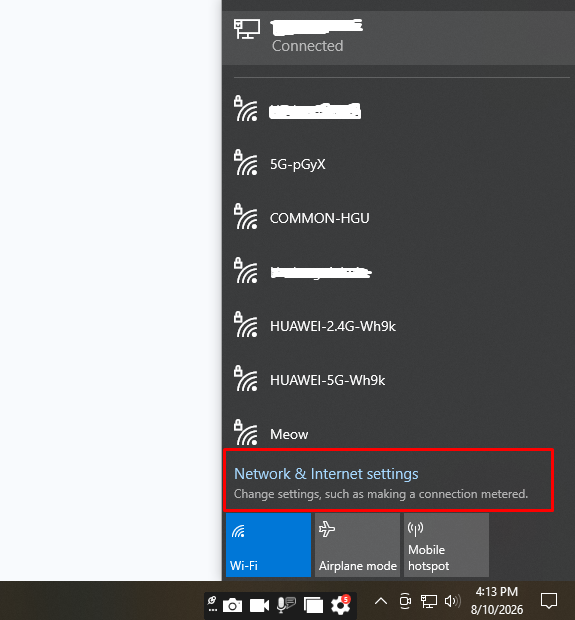
2. Scroll, and you will see ‘IP Settings’.
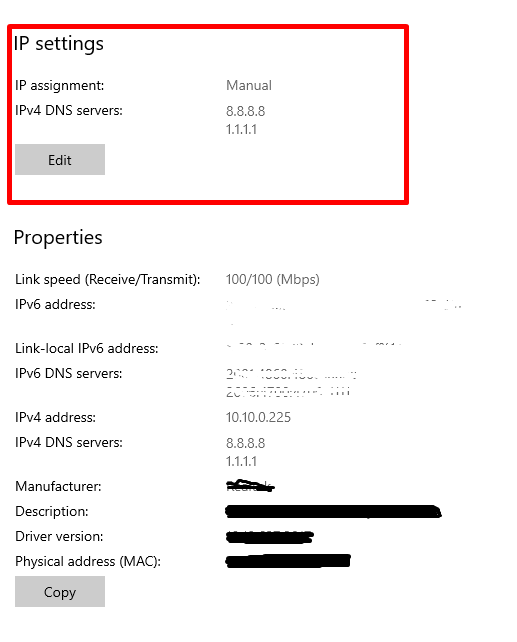
3. Click on the “Edit” button in IP settings.
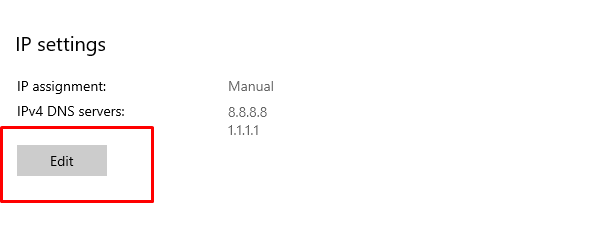
4. Now change the settings from Automatic to Manual.
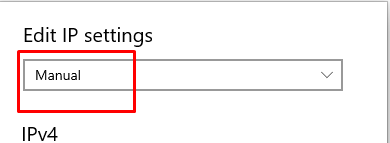
5. Turn the IPv4 option on.
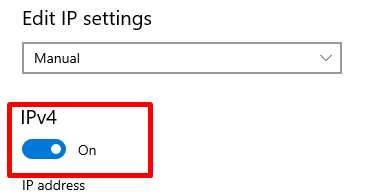
6. Now enter your preferred servers
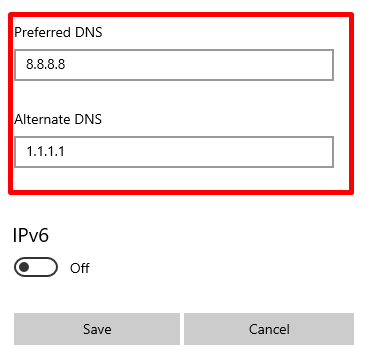
7. Save the changes and connect to your network again.
Use Powershell
Professional IT workplaces use PowerShell to troubleshoot Domain Name System issues. It reduces the need to go to network settings to find and fix DNS connectivity issues. As they are working with hundreds of workstations, it becomes difficult to fix individual connectivity issues.
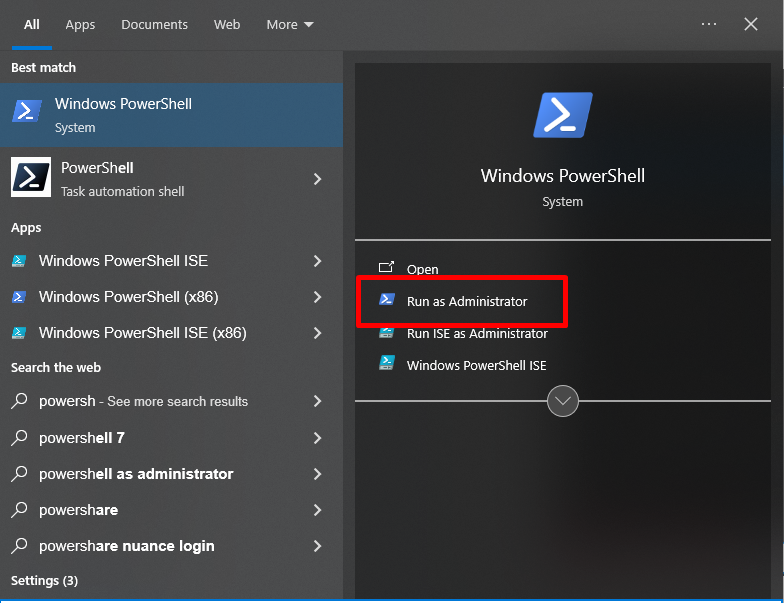
1. Go to the search bar of your computer and search ‘PowerShell’
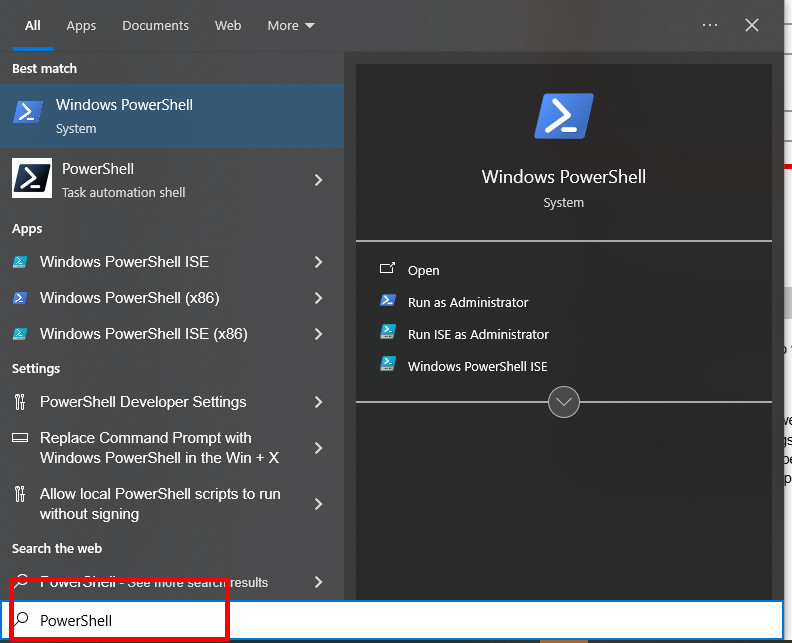
2. Click on “Run as Administrator”
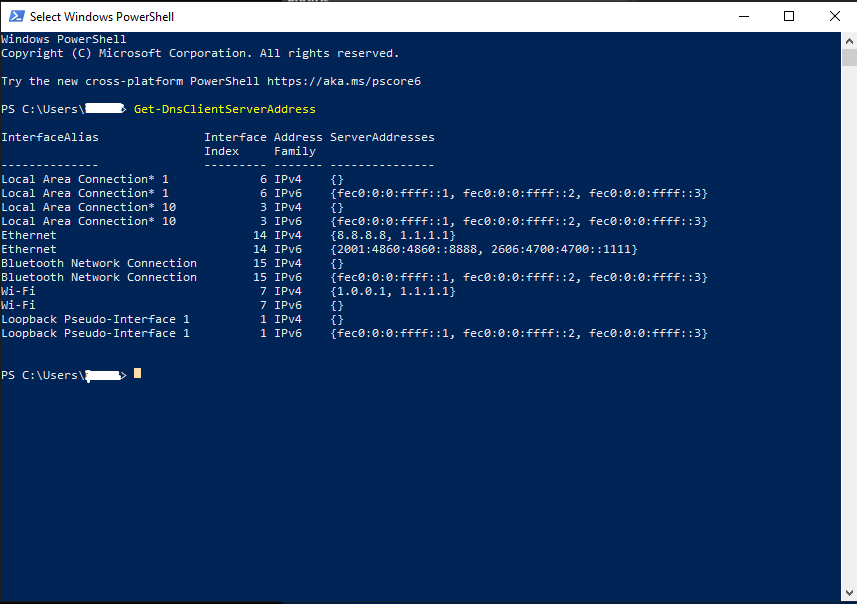
3. Paste the command ‘Get-DnsClientServerAddress’ and check which Domain NS server your computer is using. You will see a list of D.N.S servers there.
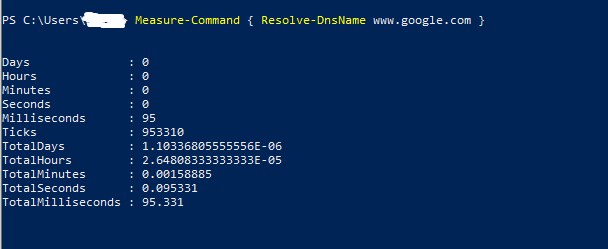
4. Check the time in Domain Name System lookup. If you see slow response time then the problem is not with the website or internet. The problem is with the D.N.S. Run the command: “Measure-Command { Resolve-DnsName www.google.com }” in PowerShell.
How to Fix a DNS Lookup Speed?
If Domain NS lookups are slow, visitors will experience delays before the page starts loading. Fortunately, it is possible to improve Domain Name System lookup speed. For that, you can choose a faster D. NameSystem provider, enable D. NS caching, reduce unnecessary Domain name’s system requests and optimize your site’s Domain NS records.
Use a Faster D.NS Provider
Your provider can significantly impact lookup speed. Some Domain NS resolvers have faster response times. They also have better global infrastructure than others. You need to use a reputable DNS service with servers near you. Popular options include Cloudflare Domain Name System, Google Public DNS and Quad9.
Enable DNS Caching
Domain NS caching allows you to temporarily store previously resolved domain information. This way,e browsers, operating systems,s or network devices do not need to perform a new lookup every time. Proper caching helps to reduce repeated DNS queries. It also improves connection times.
Optimize D.NS Records
Keep your DNS configuration clean and avoid unnecessary records or complex setups. Review your DNS records regularly. You also need to remove outdated or unused entries. A properly organized domain name system configuration can help reduce unnecessary queries. It can also make D.NS management more efficient.
Reduce the Number of Third-Party Domains
Websites usually load resources from third-party domains. These platforms include analytics platforms, advertising networks, fonts and external scripts. Each additional domain requires a Domain NS lookup. When you remove unnecessary third-party resources, it reduces the number of D.N.S lookups that are necessary before a page can fully load.
Use DNS Prefetching
Domain NS prefetching enables a browser to resolve domain names. It does this before the user actually needs to access resources from those domains. You need to add D.N.S prefetching for important third-party resources. This reduces the delay that can appear with future Domain Name System lookups.
Choose Reliable DNS Hosting
You need to choose a reliable D.N.S hosting provider. The reliability and infrastructure of your domain name system hosting provider matter a lot. For a hosting provider, various things matter. The provider should have a global network, high availability and optimized Domain NS resolution. It can deliver faster responses to users in different geographic locations.
Monitor DNS Lookup Performance
You also need to monitor Domain Name System lookup performance. You should regularly test your domain’s name system response times. It will help you identify slowdowns or configuration problems. Monitoring tools help you determine whether the issue comes from your DNS provider, records, network or website configuration. Tracking performance over time helps you to notice unexpected changes.
Keep DNS TTL Values Appropriate
Time to Live (TTL) values determine how long Domain NS information stays cached. So set an appropriate TTL. It can reduce repeated domain name system queries. While still allowing important DNS changes to propagate when necessary. The ideal value depends on how frequently your Domain NS records need to change.
Final Thoughts
A slow DNS resolver can add unnecessary delay. But domains name system is only one component of the entire network performance. The best way to find issues with DNS lookup is by testing it and not guessing.
Measure your current DNS response time and compare multiple DNS servers. Also, look for consistent results if another resolver performs better for your connection. You need to change your DNS settings. It will improve the responsiveness of websites and online services.
FAQs
What is a Good DNS Response Time?
There is no single response-time number that makes a DNS server universally "fast”. DNS performance depends on your location, network, resolver, routing and testing conditions.
In general, lower response times are preferable.
A DNS response is measured in a few milliseconds. It is typically much less noticeable than a response (takes hundreds of milliseconds). However, the difference between two already fast DNS servers can practically impact everyday browsing.
For example, when you reduce a lookup from 80 ms to 20 ms. It can remove noticeable delay in some situations when you reduce it from 15 ms to 10 ms. It is much less likely to produce a meaningful difference for normal browsing.
Does changing DNS make the internet faster?
If your current DNS resolver is slow. Then changing DNS can make website and application connections start faster. However, it does not increase your internet bandwidth. Nor can it improve the maximum download and upload speed that your ISP provides.
How do I know if DNS is causing slow internet?
You can compare DNS lookup times using multiple DNS resolvers. You can also check whether slow lookups occur consistently. If DNS requests are slow and other network tests are normal. Your DNS configuration or resolver can contribute to the delay.
Does clearing the DNS cache improve lookup speed?
Clearing the DNS cache can resolve outdated or incorrectly cached DNS information. But it does not automatically make DNS faster. After clearing the cache, the next lookup actually takes longer. This is because you need to resolve DNS information again.
Why does DNS speed change between different websites?
DNS response times can vary. This is due to different domains having different DNS configurations, caching states, authoritative servers and network routes. A resolver responds quickly for one domain. However, it takes longer for another.
Can restarting my router fix slow DNS?
Restarting your router can sometimes resolve temporary networking problems. It can also improve stale connections or DNS-related issues. However, if the underlying problem is a slow DNS resolver or incorrect configuration. Restarting the router may not provide a permanent solution.
Should I change DNS on my device or router?
It depends on your setup. Changing DNS on an individual device affects only that device. However, changing DNS on your router applies the settings to multiple devices. You can connect them to your network.