
What Is My DNS Server
What is a DNS Server?
A Domain Name System (DNS) server helps you find the correct website on the internet. It consists of a series of numbers, such as 142.270.130.48.
But it is very difficult for individuals to remember each number, so we use names such as facebook.com, google.com, and snapchat.com.
For example, we type www.google.com into the browser. Your computer asks, “What is the IP address of google.com”. The DNS server looks it up and gives the correct IP address.
Your browser connects to Google’s server using the IP address. After this, Google’s server sends the webpage to your browser, and the webpage opens.
To explain it more simply, imagine a friend named “Henry” whose phone number is saved in your mobile phone.
Take Henry as the website (i.e., google.com), his phone number as the IP address, your contact list on your phone as the DNS server and calling a friend as connecting to the server.
If you somehow forget his number, just put his name in the search bar, click on his name, and call him. DNS servers work exactly like this.
As you now know about DNS servers, let’s talk about how to check the DNS server on different devices.
How to Find a DNS Server?
It's very easy to find the DNS server on your PC, Mac or mobile devices. You just need to follow some simple steps. These steps are as follows:
How to Check What is my DNS Server on Windows
To find the DNS server on Windows, follow the steps given below:
Click on the Start Menu and open the command prompt.
Now type cmd and press Enter.
Type nslookup google.com
Click enter
You will get results as:
Server: dns.google
Address: 8.8.8.8
Non-authoritative answer:
Name: google.com
Addresses:
2a00:1450:4019:819::200e
142.251.37.78
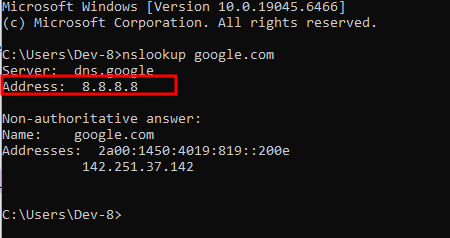
The address shows the DNS server address. You can see Google's DNS address in the above image.
This is the primary way to find the DNS servers on Windows. There’s a secondary way to find the DNS server.
Click on the Start menu and open the command prompt.
Now write cmd and click Enter.
Write ipconfig/all and click “Enter”
If your PC is connected with an Ethernet cable, look for the “Ethernet adapter Ethernet” section. Next to “DNS server”, you can get your IP addresses.
If your PC is connected to Wi-Fi, look for the “Wireless LAN adapter WiFi” section. Next to “DNS Server” you can get your IP addresses.
The first IP address is your primary DNS server. The second IP address is your secondary DNS server.
How to Find my DNS Server on Mac
Finding a DNS server on a Mac is easy. The process is the same as finding it on Windows. Means the nslookup command-line method is similar. Just follow the given steps:
Press the Command key and the space bar to open the terminal.
Now type terminal and then nslookup google.com
Click on Enter
You will get the following results:
Server: dns.google
Address: 8.8.8.8
Non-authoritative answer:
Name: google.com
Addresses:
2a00:1450:4009:815::200e
142.250.178.14
In the addresses, you will see your DNS server address / addresses.
In home network configurations, your IP address may start with 192.168.X.X or 10.X.X.X. This is your router's IP address on the local network.
How to Check my DNS Server on Android
To find your DNS IP address on Android, there are three methods:
Method 1: Check Private DNS
Open settings
Go to Network & Internet (You can also search for connections)
Tap Private DNS
You will get the following:
Off: Your network or ISP provides DNS.
Automatic: Android uses network provided DNS
Private DNS provider hostname: Shows the DNS hostname (i.e., 1.1.1.1)
Method 2: Check Wi-Fi Network Details
Some mobile devices show the DNS servers that their network assigns. To check this:
Open Settings
Go to Network & Internet
Look for Internet (or Wi-Fi)
Tap on your connected Wi-Fi network
Tap on Network details or Advanced
Look for DNS 1 and DNS 2
In case you can’t find it, it means your mobile devices aren’t showing it.
Method 3: Check through Online Tool
In case you cannot find your DNS server on your device, then simply search for "Fastestdnstest’s what is my dns server" page and just click on “Find my DNS”. Our tool will provide you details about your DNS server in just a few seconds.
How Can I Check my DNS Server on iOS?
To check the DNS server on iOS, just open your active Wi-Fi connection. The following are the steps to check your DNS server on an iPhone or iPad.
Tap on settings
Press Wi-Fi
Tap on the info icon (i), which is located near your active Wi Fi connection
Now scroll down and you will see Configure IP settings
Press on it and view your DNS
Besides devices, some users may want to check the DNS server of their router. So, we will explain that too.