
What Does DNS Server not Responding Mean and How to Fix it?
Last Updated: Sep 08, 2026
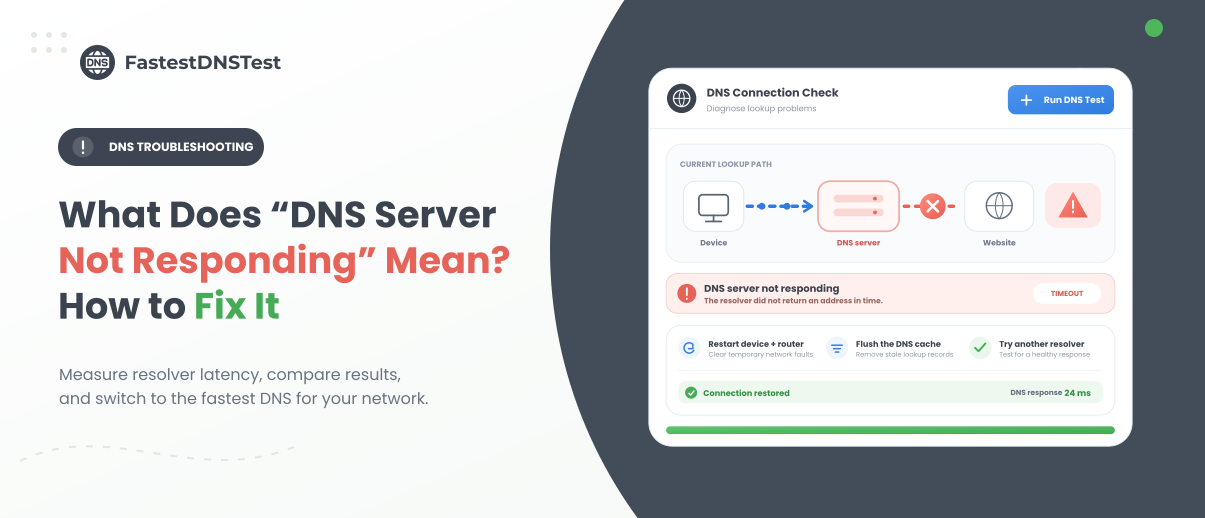
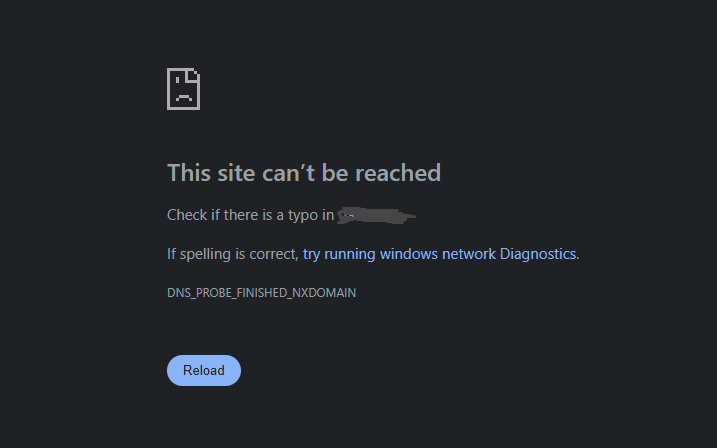
Does this ever happen to you: whenever you open a website, you only see an error message saying “DNS server not responding” or “DNS_PROBE_FINISHED_NO_INTERNET”? This is a common internet connectivity issue. It prevents your device from accessing websites.
This happens even if your internet is working normally. It means there are no issues with your internet connection. A DNS error can occur due to other issues as well.
In many cases, you just need to restart your router or change your DNS settings. Sometimes you may also need to clear the DNS cache or check the network configuration.
So, your DNS is non responsive, don’t worry. We are going to tell you exactly what you need to do in order to resolve this issue. You will know every step to resolve this issue.
What Does “DNS Server Not Responding” Mean?
If your browser is giving “DNS server not responding” or you are facing a slow DNS issue, it means your device cannot get a response from the DNS server it is trying to use. You only remember the name of the website, for example, fastest dns test but the website lives on a numeric IP address. DNS translates it into another.
Website name: fastestdnstest.com
IP address: A numerical address associated with the website's server
In short, users are not required to remember IP addresses. When the DNS server doesn’t respond, this translation may fail. We can say that your browser was unable to locate the requested website.
Always keep in mind that internet connection and DNS issues are not the same. If a website is not loading, it doesn’t mean internet connection or router issues. If you are getting a “DNS server not responding” error, then there would be a connection issue with the DNS server.
Importantly, this does not always mean that your internet connection is completely down. Your device may be connected to the router while DNS resolution is failing.
Why Does the DNS Server Stop Responding?
Several different problems can cause DNS errors. Some are related to your device, while others involve your router, internet service provider, DNS provider or the website itself. Common causes include:
DNS cache problems
Outdated or corrupted network drivers
VPN or proxy interference
Firewall or antivirus software blocking DNS traffic
Temporary ISP problems
Incorrect network configuration
Network congestion
A domain name that does not exist
Understanding the exact cause can help you make troubleshooting much easier.
How to Tell Whether the Problem is DNS Related?
Before changing settings, determine whether DNS is actually the problem.
Try opening several different websites. If none of them load but your device says it is connected to the internet, DNS may be responsible.
You can also try accessing a website using its IP address. If the IP address works while the domain name doesn’t. It strongly indicates failure of DNS resolution. Connecting one device to another through the same Wi-Fi network is another helpful test.
In case the site works normally on your phone but you face issues on your computer. The problem may be in your computer and not the site. If the device is connected to the same router and they are giving the same problem. The issue will be related to DNS configuration or ISP.
How to Fix “DNS Server Not Responding”?
There isn't one universal solution. DNS errors can have different causes. Try the following solutions in the proper order. Start with the simple one.
Check Your Internet Connection
Check your device. You need to make sure your connection to the internet is active. Look at your Ethernet or Wi-Fi connection. See if it is reporting an active connection. Afterwards you can:
Open multiple websites
Disconnect and reconnect to Wi Fi
Test another device on the same network
Turn Wi Fi off and back on
Check if other internet applications work
If the device is connected to your network but it can’t access the internet. Then the problem is not with DNS. It may have occurred due to the router, modem, ISP or location.
Restart Router and Modem
There are various ways to troubleshoot. Restarting networking equipment is one of those steps. Turn off your router and modem. If your device is performing both functions, then turn it off.
Before turning it on. You need to wait for about 30 seconds. Wait a few minutes so the equipment can connect with the ISP. Then try opening a website again.
A restart can clear temporary network problems, renew connections, and resolve occasional DNS or routing issues.
Restart Your Computer or Device
Restarting your modem or router is not necessary. Sometimes, there is a temporary issue in the operating system’s network services. You can restart your mobile, tablet or PC and try again.
You may find it too simple to fix a DNS issue. However, restarting the device resets network services. It also reduces temporary software glitches.
Flush the DNS Cache
Your device stores previously resolved DNS information in a local cache. This allows frequently visited websites to load faster. But cached DNS information can sometimes become corrupted or outdated.
When you flush DNS information. It forces your device to request fresh DNS information. On Windows:
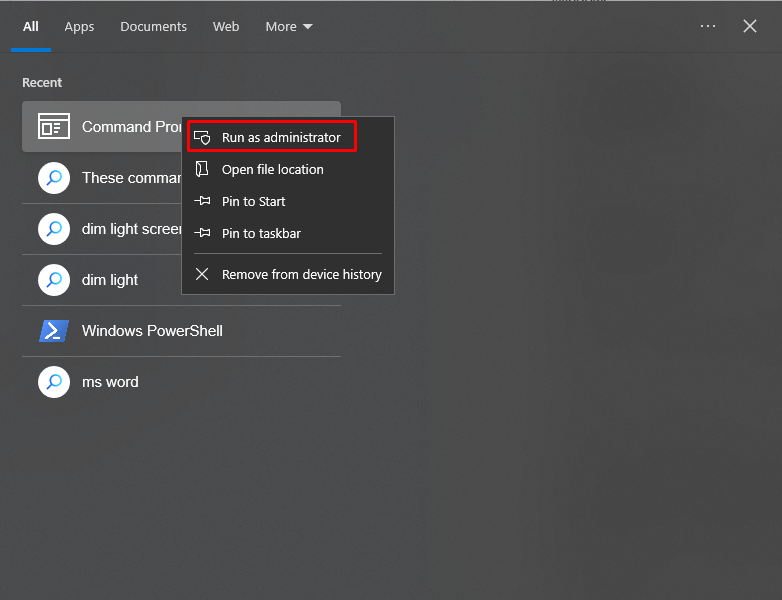
Open Command Prompt and click on “Run as administrator”
Enter ipconfig /flushdns
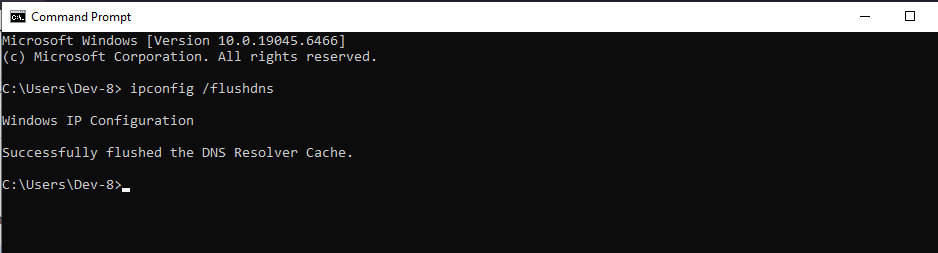
As you can see in the above image. We have received the message “Successfully flushed the DNS resolver cache”. After doing this, close Command Prompt. Now go to the website and reload it.
Flush DNS Cache on macOS:
The DNS cache clearing process is a bit different in macOS versions.
Press Command + Spacebar
A Spotlight search will open
Type Terminal and press Enter.
Copy the following command and paste it into Terminal
sudo dscacheutil -flushcache; sudo killall -HUP mDNSResponder
Press Enter
After prompting, Type Mac’s administrative password
After this, reload the website and get access to the site.
Change Your DNS Server
Usually an ISP assigns DNS servers on its own. But these servers can become slow and unreliable sometimes.
In this situation it is better to switch to a public DNS server. This switch helps to determine if the problem is occurring due to the current DNS provider. Some of the popular public DNS servers include:
Google Public DNS
Cloudflare DNS
Quad9
When you change the DNS servers, it immediately resolves the issue. It means your actual DNS server is having an outage or connectivity problem.
How to Prevent Future DNS Problems?
It is a bit difficult to prevent DNS failures. However there are some practices that you can follow. These practices minimize the chances of recurring problems. Moreover, it is necessary to ensure that the operating system, browser, router firmware and security applications remain updated.
If you don’t know about advanced DNS, network settings or proxy settings. Don’t change anything. You shouldn’t even go near it. You also need to keep track of your custom network settings. You can restore it afterwards if necessary.
If your ISP's DNS is consistently unreliable. You need to use an alternative DNS provider. Make sure that this DNS provider is reliable. It is also important to understand if the problem only affects your entire network or only one device. That information makes future troubleshooting much faster.
Final Thoughts
If you are getting an unresponsive DNS error, it means your device is having issues resolving domain names using DNS. The message may look complicated. The problem can usually be simple.
You can start with easy solutions. First check your internet connection. Restart your router and device. After this, you can test other websites. If the problem persists, flush your DNS cache. Check network settings and temporarily disable your VPN. You also need to check proxy software and switch to a reliable public DNS server.
However, if your whole network is affected by this problem. Then you need to analyze your router. If only one device is having the issue, then focus on the network configuration of that device. You also need to check its drivers, browser and security software.
FAQs
Is Non Responsive DNS issue related to an internet issue?
Not necessarily. Sometimes even when your internet is working properly you still are unable to resolve domain names. DNS is just one part of the internet connection. This means a DNS failure prevents websites from loading. So, it is not necessary that an internet issue is causing a non responsive DNS issue.
Is a DNS server not responding to a serious problem?
No. DNS errors are common network problems. You can resolve this issue by restarting the router. Other ways to resolve DNS errors are flushing the DNS cache, correcting network settings and changing DNS servers.
Will restarting my router fix DNS problems?
Yes, it can. It can only resolve temporary networking problems. It establishes a new connection with the ISP. But it can’t fix DNS errors forever.
Can a VPN cause DNS errors?
Yes. VPN applications can modify DNS routing and network settings. A VPN configuration problem can therefore result in DNS resolution failures.
Can antivirus tools cause DNS errors?
Yes but in some cases only. Security software can inspect or filter network traffic. Incorrect configuration or software conflicts can occasionally interfere with DNS requests.
Why is only one website showing a DNS error?
If you are facing a DNS issue for only one website while the rest of the websites are working normally. It means there are no issues on your side. It may be due to incorrect DNS records for the website. But this is not the most common reason why an error can occur. It can be due to an expired domain, a server issue or another configuration issue.
Do I need to change my DNS server on a regular basis?
No. You don’t need to change your DNS server on a regular basis. If your current DNS server is working normally. Then you don’t need to change it. Only consider switching if your existing DNS server is consistently unavailable. Moreover if you are facing slow, filtered or problematic service, you can change it in this scenario as well.